
Printing from SuSE/SLES to a Windows Printer
The following document explains how to configure your SuSE or SLES system to be able to print to a remote printer shared from a Windows server. The first step is to install Unix print support on the Windows print server. From the Windows Component Wizard, install the “Print Services for Unix” package, which is available under the “Other Network File and Print Services” category.
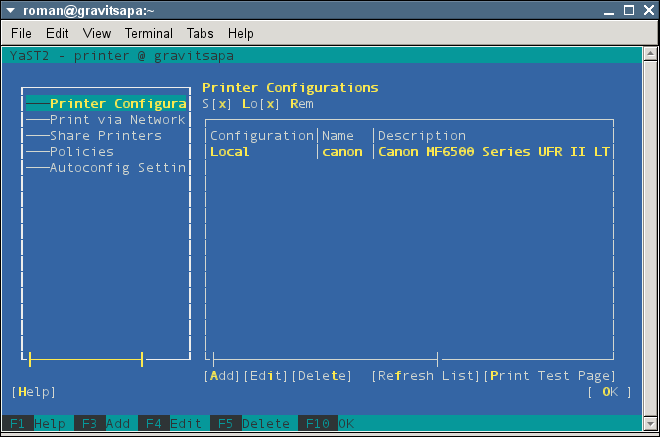
Once the Windows print server is good to go, use Yast GUI (/sbin/yast2 or /sbin/yast) to configure the print queue. Select the Printer sub-menu from the Hardware Yast category:

From the Printer Configuration application, select to add a printer:
Select the Connection Wizard option in the “Add New Printer Configuration”:

In the Connection Wizard menu, select “Microsoft Windows/SAMBA (SMB/CIFS)” and populate the field values:
–Server (NetBIOS Host Name):
Print Server Windows hostname or IP address
–Printer (Share Name):
The share name configured for the printer on the Windows Print server.
–Workgroup (Domain Name):
Name of the Domain or workgroup that the print server is part of.
–Authenticate As:
Populate the field with the Windows username and password which will be used to access the server.
Note: If no password is set, use a single space character.
–Select the printer manufacturer:
Choose printer manufacturer from the drop down menu. This is used in the next step to select the appropriate Linux printer driver.
-Hit OK in the Connection Wizard menu. The next screen will allow you to select the printer driver and name the printer configuration.

Once you’ve selected the appropriate driver and selected a configuration name, hit OK to complete the setup.

-Your machine is now setup to use the remote Windows printer.


![wyryr1sn52gntzn65v4fpz5lc6v[1]](https://i2.wp.com/www.krazyworks.com/wp-content/uploads/2021/08/wyryr1sn52gntzn65v4fpz5lc6v1-80x80.jpg "Plundering Facebook Photo Albums")
![clfud46mxf2t5zph2l04zlpgl1d[1]](https://i2.wp.com/www.krazyworks.com/wp-content/uploads/2021/08/clfud46mxf2t5zph2l04zlpgl1d1-80x80.jpg "Scraping a Web Page in Bash")
![DSCF5361[1]](https://i1.wp.com/www.krazyworks.com/wp-content/uploads/2020/10/DSCF53611-80x80.jpg "Processing Videos with ffmpeg and Lightroom")
![Cat-Devouring-A-Bird-Pablo-Picasso[1]](https://i0.wp.com/www.krazyworks.com/wp-content/uploads/2020/10/Cat-Devouring-A-Bird-Pablo-Picasso1-80x80.jpg "Searching Twitter")
![91ebozy1e3b138waujy28agrngy[1]](https://i2.wp.com/www.krazyworks.com/wp-content/uploads/2021/08/91ebozy1e3b138waujy28agrngy1-80x80.jpg "Generating Random Text Files for Testing")
![iwoau71okwxqh4jv3k4ook32qps[1]](https://i2.wp.com/www.krazyworks.com/wp-content/uploads/2021/08/iwoau71okwxqh4jv3k4ook32qps1-80x80.jpg "Finding Cron Jobs")
![5gtysva4wkc8mzc1k3e66vaycxx[1]](https://i1.wp.com/www.krazyworks.com/wp-content/uploads/2021/08/5gtysva4wkc8mzc1k3e66vaycxx1-80x80.jpg "Understanding Memory Utilization in Linux")
![sy2zeb1vp2h8itlxfbbylw0jrm0[1]](https://i0.wp.com/www.krazyworks.com/wp-content/uploads/2019/12/sy2zeb1vp2h8itlxfbbylw0jrm01-80x80.jpg "Validating HTTPS Cache Peers for Squid")
![Photo-2019-10-07-14-39-03_0266[1]](https://i1.wp.com/www.krazyworks.com/wp-content/uploads/2019/11/Photo-2019-10-07-14-39-03_02661-80x80.jpg "Verifying SNMP Connectivity on Multiple Hosts")


I wish to purchase a VPS server and I wish to use Windows Server on it. I will probably buy 3-4 VPS for different projects. The servers will be with no OS. How do I obtain a license for the windows server and how much is it?
Thank you!
I’m beginner in windows server. What is use of windows server & what is the difference between normal os and windows server How many systems are maximum connected with one server.
How do you setup the work stations on your network to work with windows server Active Directory system?
so ive found that thats what they do but how do they setup the computers to login to the server?